Introducing Soft bundles in Checkout V2
Moderate Upgrade
❗ Important: This feature is currently in the Early Availability (EA) status.
Soft bundles let marketplace operators group multiple products into a single, discoverable item in the catalog. Buyers find it like any other product. They see all included products. They purchase them together in one checkout flow (Checkout V2). Teams often use soft bundles for:
- merchandising so related products are easier to sell as a set.
- discounting when the set should cost less than buying each item alone.
- upselling when additional services should appear next to a primary product.
The capability is intentionally lightweight. That is why it is called “soft.” It includes everything needed to create, discover, and purchase a bundle. It does not add bundle-level logic after the purchase is complete. On completion, each product becomes its own independent subscription at the bundle-discounted price. There is no bundle-aware cancellation, modification, or renewal after checkout. A buyer can cancel one subscription and the others are unaffected. The discounted price on each subscription can continue on renewal independently of the rest.
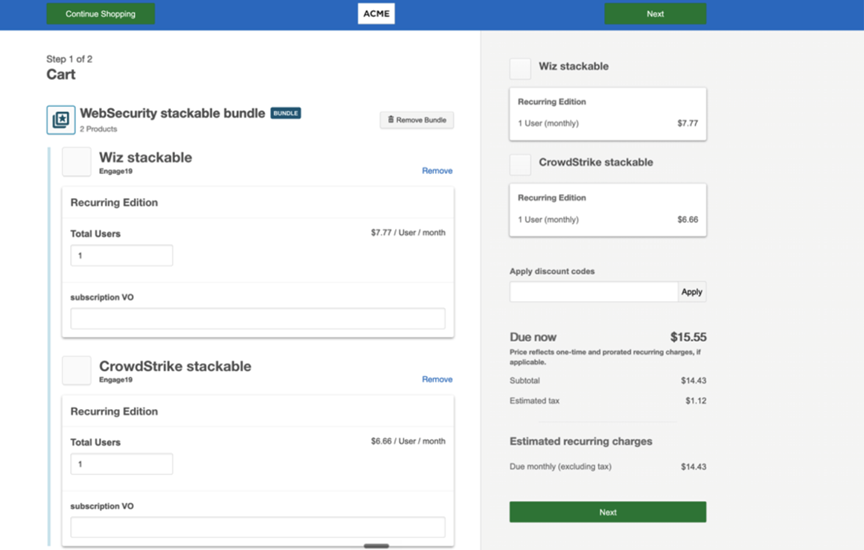
Cart and checkout (buyer view)
- Layout — The bundle appears as one line in the cart and in Checkout V2. Each included product is listed underneath.
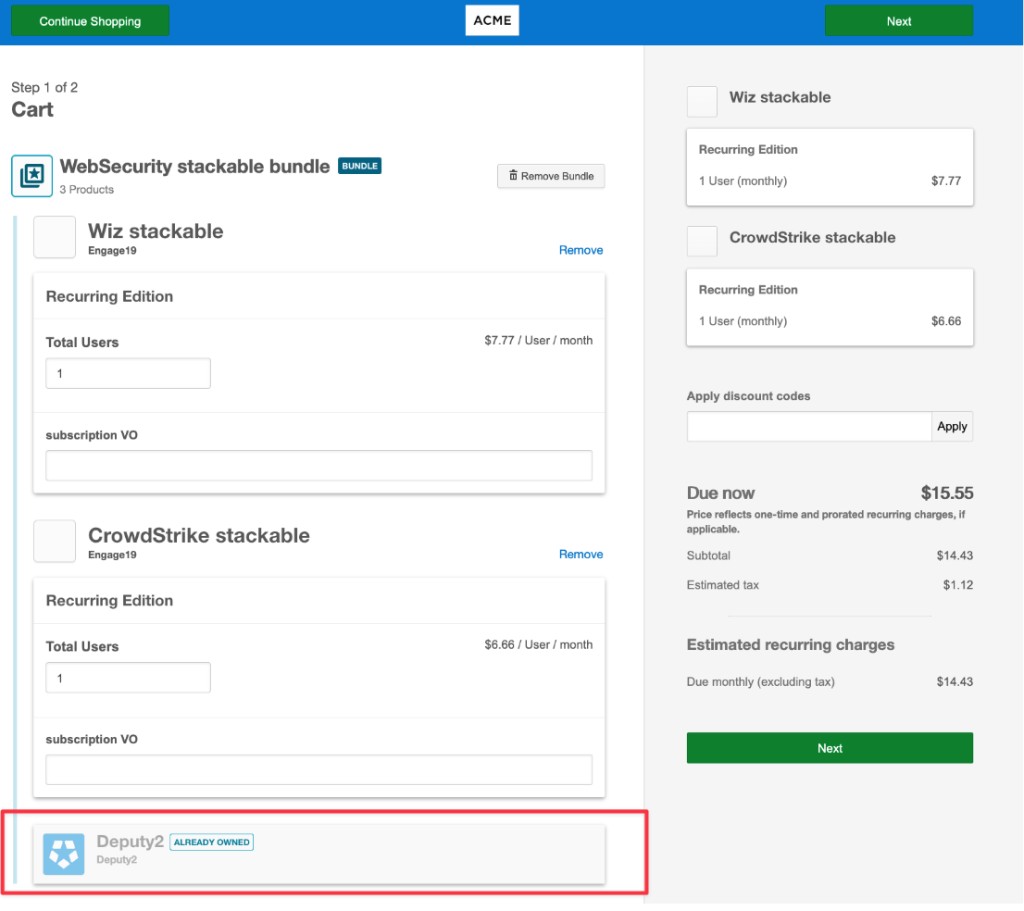
- Already owned products — These products stay on the list. They are greyed out and labeled.
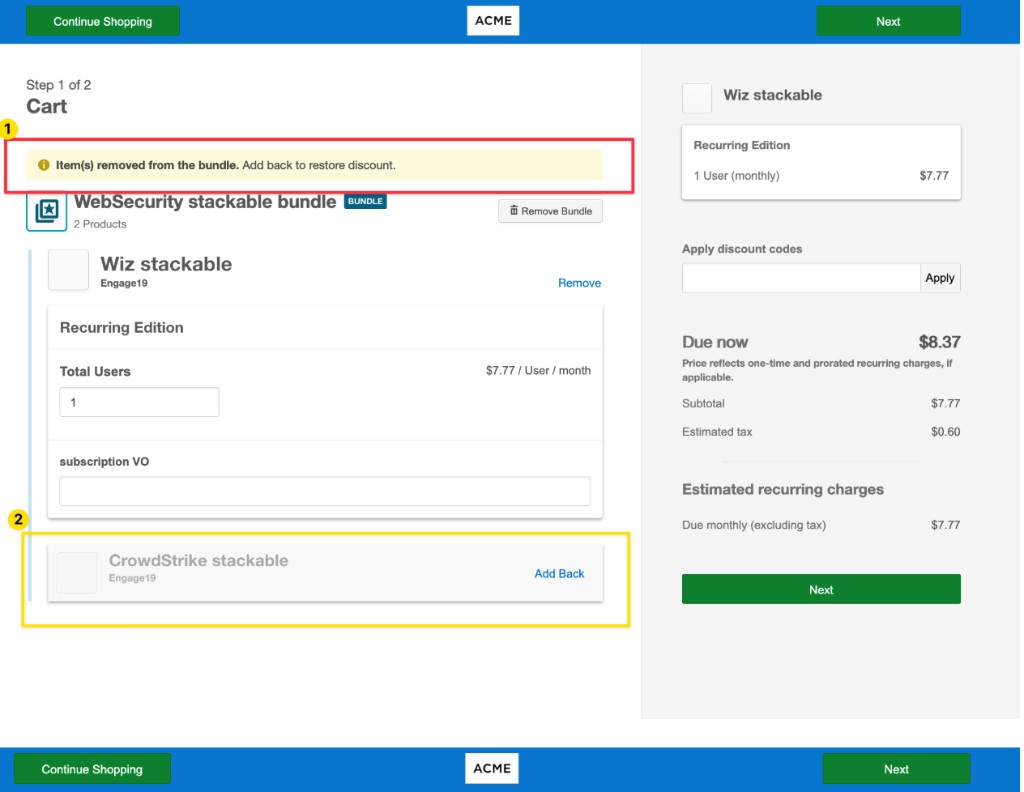
- Partial purchase — The buyer can remove a product before placing the order. They can add it back if they change their mind. Removed lines stay greyed out. The total updates as they change the bundle.
- Discounts — Removing a product drops any bundle discount. A short banner explains why. Auto-applied discounts return when the product is added back. Manual codes must be entered again.
Prerequisites
Ensure that the following prerequisites are in place:
- Bundle management must be enabled.
- Requires Plaza storefront theme with @appdirect/sfb-theme-components version ≥ 2.1.32.
- Checkout V2 must be enabled.
For any help with these prerequisites, contact your AppDirect technical representative.
Feature enablement
This feature is not enabled by default. Contact your AppDirect technical representative to request it.
Setting enablement
Ensure that the prerequisites and the marketplace setting mentioned in the Prerequisites section are enabled. No other marketplace setting enablement is required.
Documentation
Refer to Soft bundles in Checkout V2.
Was this page helpful?
Tell us more…
Help us improve our content. Responses are anonymous.
Thanks
We appreciate your feedback!